
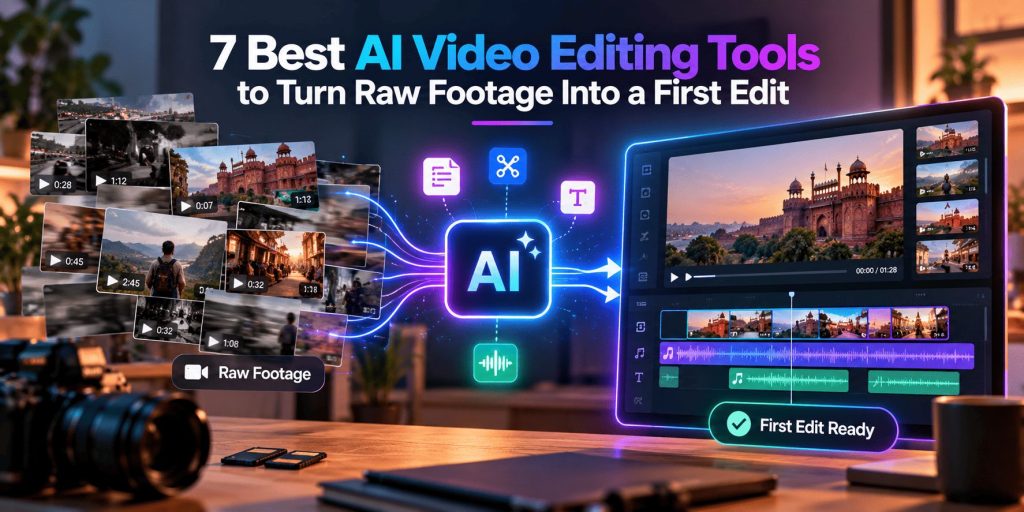
A first edit is the earliest assembled version of a video, built from raw footage. It puts usable clips in order, removes bad takes, and lands near the target length. It is rough on purpose.
AI video editing software now builds that version for you. That is great news for anyone who has stared at hours of footage and an empty timeline. Some tools read a transcript. Some follow a script. The most capable ones take a plain-language brief and assemble the timeline themselves.
The first pass is the slowest part of editing. Watching footage, comparing takes and cutting dead air can eat up days. None of that is creative work. Handing it off frees you to focus on story, rhythm and polish.
This list covers seven tools that shorten that stage. Each entry explains what the tool does well, who it suits, and what to keep in mind.
How were these AI video editing tools chosen, and how do they compare?
Each tool was judged on six criteria. The best ones do more than cut silence. They hand you a timeline you can keep shaping.
- Take selection: Can it find the best version of a line or moment?
- Plain-language direction: Can you brief it in everyday words?
- Control after the AI pass: Is the result editable, or locked in?
- Footage types: Does it handle talking heads, multicam, music, and scripted work?
- Workflow fit: Does it work alone, or inside tools you already use?
- Cost: Is there a free way to start, and how do paid plans scale?
The table below summarizes the results.
Tool | Best for | Key output or feature | Starting price |
Invideo Editor | Interviews, podcasts, ads, multicam and event footage | Agent-built base cut on a full editable timeline | $20/month (annual) on Starter |
Descript | Podcasts and talking-head videos | Transcript editing with the Underlord assistant | Free plan; paid from $16/month (annual) |
Adobe Premiere Pro | Editors already working in Adobe | Text-Based Editing and Media Intelligence search | $22.99/month (annual plan) |
DaVinci Resolve Studio | Scripted and multicam shoots | IntelliScript and Multicam SmartSwitch | Free version; Studio is $295 one-time |
Gling | Long solo recordings | Silence and bad-take removal with XML export | Free plan with 1 hour of media per month |
CapCut | Social-first creators | Filler removal and long-to-short clips | Free; paid from $9.99/month |
VEED | Quick spoken-word cleanup | One-click Magic Cut in the browser | Free plan; Lite from about $12/month (annual) |
1. Invideo Editor: agents that assemble a base cut on a real timeline
Invideo editor is a browser-based multitrack timeline with color, audio and 3D tools built in. Teammates can edit the same project at once. You can cut fully by hand. Or you can assign the work to invideo Agent, the AI editing agent that runs inside it.
You upload your footage, plus any dialogue, voice recordings or music. Then you describe the edit in plain words. No prompt engineering is needed.
Invideo Agent reviews the on-screen action, delivery and dialogue. It removes unusable material and selects the strongest takes. That is rough cut editing done by invideo Agent, on a timeline you can take over at any frame.
The agent also logs every clip in memory, so you can find any moment by describing it. One direction can apply to every shot on the timeline, from cutting pauses to matching the look. The agent takes the execution. You keep the creative calls.
Changes happen in words. Ask for a faster opening, a shorter middle, a trailer or a social version. The agents take the execution. You keep the creative calls.
- Best for: Editors and creators with long raw recordings, repeated takes or multicam shoots. It is also a strong fit for ad teams making several versions from one shoot.
- Where it falls short: Full agent access starts above the entry plan. Finished projects export to Premiere Pro, Final Cut Pro or DaVinci Resolve with cuts and layers intact, so you can always finish elsewhere.
- Pricing: The manual timeline is free to use even if you never assign an agent a task. Paid plans start at $20/month on Starter (annual billing) and scale up to $375/month on Max 3x.
2. Descript: edit video by editing text
Descript turns your footage into a transcript. Delete a sentence, and that moment disappears from the video. It feels closer to editing a document than working on a timeline.
Its AI co-editor, Underlord, takes plain-language prompts. It can remove filler words, flag bad takes, suggest B-roll and create social clips. One long-term user shared a smart tip. Tell it to mark cuts as ignored instead of deleting them. You can then review everything it removed.
Descript also offers Studio Sound for cleaner audio. Podcasts, interviews and talking-head videos are where it shines most.
- Best for: Podcasters and interview-driven creators who would rather read than scrub.
- Where it falls short: AI actions use credits, so heavy use needs watching. Frame-level control is also lighter than in a full timeline editor.
- Pricing: There is a free plan. Paid plans start at $16/user/month on Hobbyist with annual billing. They scale up to $50/user/month on Business.
3. Adobe Premiere Pro: transcript-driven assembly inside a pro editor
Premiere Pro’s Text-Based Editing transcribes your clips automatically. You search the transcript for the lines you need. You then add them to the timeline to start a rough cut. Deleting the ellipsis marks in the transcript removes pauses from the sequence.
Media Intelligence powers the Search panel. It finds shots by what is in them, such as objects, locations and framing. That helps when a project has plenty of footage and few notes.
Enhance Speech cleans up dialogue. Generative Extend can add a few frames when a clip runs short.
- Best for: Editors who already work in Adobe apps and want AI without leaving the timeline.
- Where it falls short: You still choose each line yourself. It speeds up assembly rather than doing it for you.
- Pricing: There is no free plan. It starts at $22.99/month on the annual single-app plan, paid monthly. Month-to-month billing raises that to $34.49/month.
4. DaVinci Resolve Studio: script-matched timelines and speaker-based multicam
DaVinci Resolve 20 added AI tools aimed at the first pass. IntelliScript matches transcribed clips to a text script. It builds a timeline from the best takes. Alternate takes on extra tracks for review.
Multicam SmartSwitch assembles a timeline with camera angles chosen by speaker detection. IntelliCut removes silences. It can also checkerboard dialogue by speaker.
The AI Audio Assistant analyzes timeline audio and builds a first mix. Beat detection places markers on rhythmic music.
- Best for: Scripted projects and interview shoots with several cameras.
- Where it falls short: IntelliScript needs a script to work from. Many of the AI tools also sit in the paid Studio version.
- Pricing: The free version costs nothing. Studio is a one-time $295 purchase.
5. Gling: silence and bad-take removal with XML export
Gling does one job well. You upload a raw recording. Gling transcribes it. It then cuts silences, filler words and bad takes.
You review the result before exporting. You can trim further by editing the transcript text. The edit exports as an XML file for Final Cut Pro, DaVinci Resolve or Premiere. MP4 and MP3 export are also available, with SRT captions.
It supports English, Spanish, Portuguese, French, German, Russian, Italian, Dutch and Hebrew. It also generates YouTube titles and chapters.
- Best for: YouTubers and course creators with long, single-speaker recordings.
- Where it falls short: It is a first-pass tool, so you finish the edit elsewhere. Videos without speech are a poor fit.
- Pricing: A free plan covers one hour of media each month, with watermarked exports. Paid plans scale up to 100 hours of media per month on the top tier.
6. CapCut: filler removal and long-to-short clips at a low price
CapCut’s desktop editor packs several first-pass tools into one app. Remove Filler Words trims pauses, repetitions and filler sounds. Smart Search finds clips by object, speech, person or setting.
Long Video to Shorts breaks a recording into short, social-ready clips. Auto Reframe resizes footage for vertical formats. Auto captions appear automatically. You can edit the text and timing afterward.
- Best for: Social-first creators who turn long recordings into Shorts, Reels and TikToks.
- Where it falls short: Captions still need a careful read. Some AI tools have monthly limits on the free plan.
- Pricing: CapCut is free to start. Standard begins at $9.99/month, and Pro scales up to $19.99/month in US pricing.
7. VEED: one-click Magic Cut in the browser
VEED runs entirely in the browser, so there is nothing to install. Its Magic Cut feature removes pauses, filler words, mistakes and silences from spoken videos in one click. That makes it a quick way to clean up a rough recording.
VEED also lets you edit video through its transcript. Delete a sentence, and the matching segment is cut. An AI Copilot accepts plain-language commands, such as resizing for Instagram or adding subtitles.
- Best for: Marketers and small teams cleaning up webinars, talking-head clips and social posts.
- Where it falls short: Its timeline is lighter than a pro editor’s. Magic Cut also sits on the Pro tier.
- Pricing: A free plan adds a watermark. Lite starts at about $12/month on annual billing. Pro, which includes Magic Cut, costs about $24/month.
What makes any first edit better, whichever tool you pick?
The tool matters, but what you feed it matters too. A few habits help every time.
- Record clean takes. Say “again” out loud before a retake. People and software both find the restart faster.
- Name your files. Labels like “Interview_CamA” save confusion.
- Write a short brief. State the goal, the audience and the target length.
- Check what was cut. AI can drop a good moment, so scan the removed parts.
Which AI video editing tool should you use?
- Interviews, podcasts, ads and multicam shoots with plain-language direction → invideo Editor, which covers a wide range of footage types in one place.
- Podcasts you want to edit like a document → Descript.
- Adobe workflows that need transcript assembly → Premiere Pro.
- Scripted projects with several cameras → DaVinci Resolve Studio.
- Long solo recordings that need silence removed → Gling.
- Shorts, Reels and TikToks on a budget → CapCut.
- Quick browser-based cleanup of spoken video → VEED.
Conclusion
AI video editing software has made the hardest part of editing much easier. Sorting clips, comparing takes and cutting dead air no longer eat your day. You start from a working edit and spend your time on the creative work.
Every tool here helps in its own way. The right one depends on your footage and how you like to work.
If you want to describe the video in plain words and get an editable timeline back, invideo Editor is the strongest place to begin. Its agents handle the execution. You keep every creative call, on a timeline you can still take apart.