
There’s a pattern we see all the time with Indian business owners and marketers. They set up Google Search Console, verify their website, check that the green ticks are in place — and then never really use it again. They might glance at the clicks and impressions graph occasionally, notice it’s gone up or down, and move on.
That’s a waste of the most useful free SEO tool Google has ever built.
Google Search Console doesn’t just show you what’s happening on your site. It tells you exactly where your growth opportunities are — which pages are almost on page one, which keywords you’re already ranking for but not getting clicks, and what’s stopping Google from even seeing your content in the first place.
This article walks you through how to actually use that data. Not a tour of every button in the interface, but a practical guide to the reports that move the needle — and what to do once you’re looking at them.
What Google Search Console actually gives you
Before getting into the specific reports, it helps to understand what GSC is measuring and what it isn’t.
Google Search Console shows you how your site performs in Google Search. It tracks impressions (how many times your pages appeared in results), clicks (how many times someone clicked through), your average position in results, and your click-through rate. It also shows you which pages Google has indexed, which ones it hasn’t, and why.
What it doesn’t show you is what people do after they land on your site. That’s what Google Analytics is for. The two tools are designed to work together — GSC tells you how you’re showing up in search, Analytics tells you what happens next. We’ll come back to that.
Think of Google Search Console as your window into how Google sees your website. Not how your visitors see it — how Google’s crawlers see it, evaluate it, and decide where to rank it.
Why the data in GSC matters more in 2026
Search has changed a lot in the past two years. Google now shows AI-generated summaries at the top of many search results — and that’s cutting into organic clicks even for pages that rank well. According to Semrush, 60% of Google searches now end without a click. A Pew Research study from July 2025 found that when an AI Overview appears, users clicked on a traditional search result in only 8% of visits, compared to 15% when no summary was present.
This makes the GSC data more valuable, not less. If your page is getting impressions but low clicks, that’s information you can act on. If you’re ranking in position 7 for a keyword that gets solid search volume, you know exactly where to focus your energy. And if your pages aren’t even being indexed, none of the above matters at all.
| Metric | Value | Description | Source |
|---|---|---|---|
| Average CTR for #1 Organic Result | 27.6% | Average click-through rate for the first organic result on Google | Backlinko (2026) |
| Average CTR for Page 2 Results | 0.78% | Average click-through rate for results appearing on page 2, showing a sharp decline from page 1 | Ahrefs (2025) |
| Click Share of Top 3 Organic Results | 75% | Percentage of total clicks captured by the top three organic search results | SEO.com (2026) |
Those numbers explain why moving from position 8 to position 3 can completely change your traffic — even without publishing a single new page.
The Performance report: where to start every time
The Performance report is the most important part of Google Search Console. This is where you find out which queries are driving traffic, which pages people are landing on, and how your content is actually performing in search results.
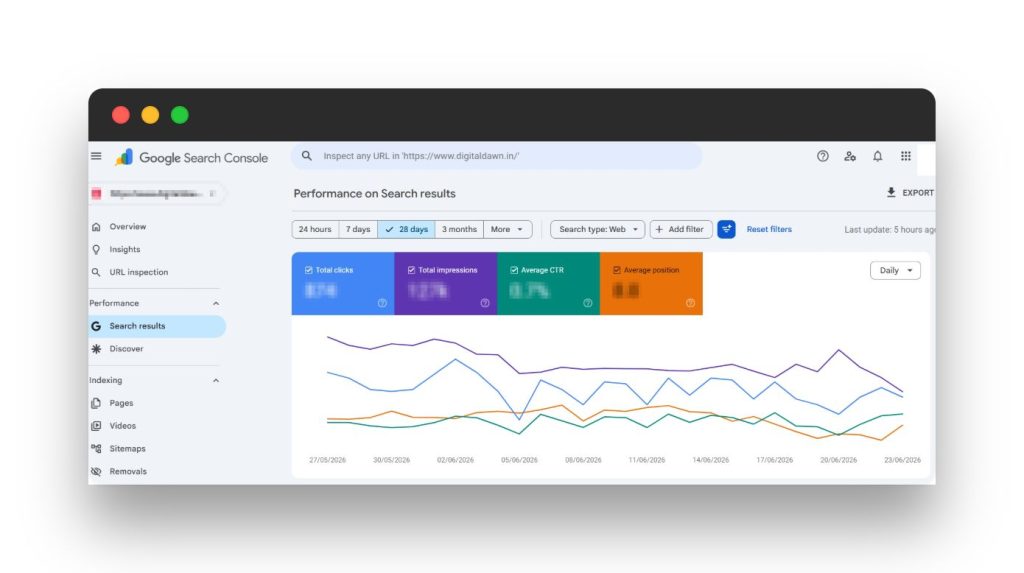
When you open it, you’ll see four metrics at the top: total clicks, total impressions, average CTR, and average position. All four are useful, but on their own they don’t tell you much. The real insight comes from digging into the data below.
The quick win filter: positions 4 to 15
Here’s the single most valuable thing you can do in Google Search Console if you want faster results.
Filter your queries by average position between 4 and 15. These are pages that are already ranking — Google knows they’re relevant — but they’re sitting just outside the top three where most of the clicks go. A page in position 7 with 500 monthly impressions might only be getting 15-20 clicks. Move it to position 3 and you could be pulling 80-100.
🔥 How to find your quick wins in GSC
Go to Performance. Click on the Queries tab. Above the table, click the filter icon and add a filter: Position is greater than 3 and Position is less than 16.
Sort the results by Impressions (highest first). What you’re looking for is queries that get a lot of impressions, a reasonable average position, but a low CTR compared to what that position should be delivering.
These are your quick wins. The page exists, it’s ranking, Google considers it relevant — it just needs some work to move up and get more clicks.
What do you do with them once you find them? A few things: update the page content to be more thorough and useful, rewrite the title tag to make it more compelling, improve the meta description so searchers have a reason to click yours over the result above or below, and add internal links to that page from other relevant pages on your site. That last one is often overlooked, but internal links pass authority and help Google understand which pages you consider important.
The CTR problem: what the benchmarks actually mean
A lot of people look at their CTR in GSC and have no idea whether it’s good or bad. Here’s a simple reference point:
| Google Position | Expected CTR Range | What Low CTR Signals |
|---|---|---|
| Position 1 | 25% to 35% | Title may not match search intent |
| Positions 2 to 3 | 10% to 20% | Snippet not compelling enough |
| Positions 4 to 6 | 5% to 8% | Your best quick-win zone |
| Positions 7 to 10 | 2% to 5% | Content depth and authority needed |
| Positions 11 to 20 | 1% to 2% | Significant content work required |
| Page 2 and Beyond | Under 1% | Treat as a new page opportunity |
If you’re at position 4 with a 1.5% CTR, your title and description are doing poor work. Someone searching that query is seeing your result and choosing the one above or below you instead. That’s a quick fix with a measurable outcome.
The indexing report: making sure your pages actually exist in Google
This is the one most Indian website owners ignore until something goes seriously wrong. The Page Indexing report shows you which of your pages Google has indexed and which ones it hasn’t — and more importantly, it tells you why.
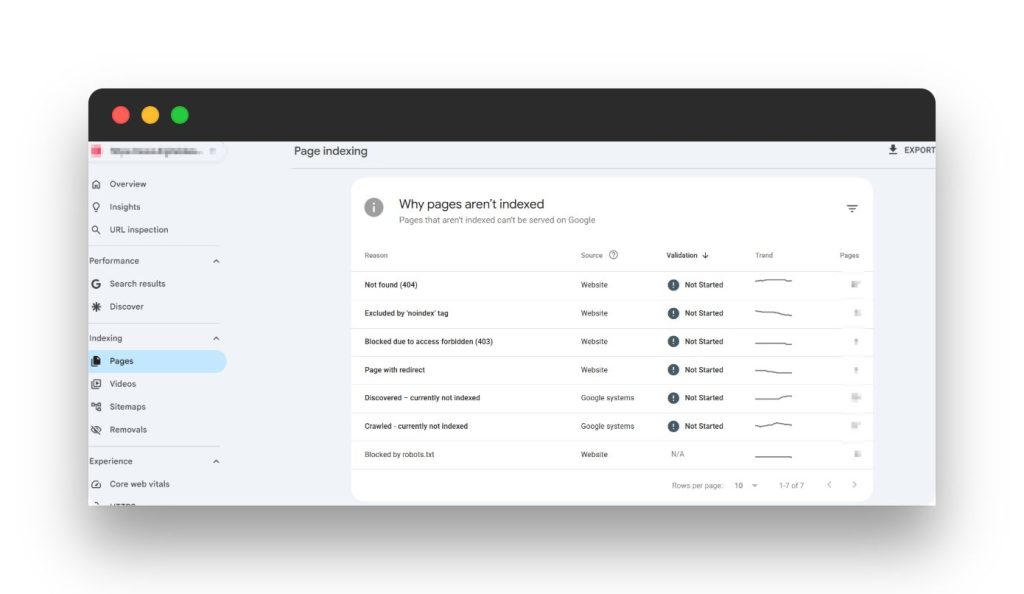
If a page isn’t indexed, it doesn’t appear in search results. Full stop. It doesn’t matter how well-written it is or how good your keyword targeting is. If Google hasn’t indexed it, it won’t rank.
| Status | Meaning | Fix |
|---|---|---|
| ⚠️ Crawled — currently not indexed | Google found and visited the page but decided not to include it in the index. Usually means the content is too thin, too similar to another page on your site, or doesn’t offer enough value on its own. | Improve content quality, add more original information, or consolidate with a related page. |
| 🔄 Discovered — currently not indexed | Google knows the page exists but hasn’t crawled it yet. Common on large sites or new pages. Could also mean Google doesn’t consider the page important enough to prioritise. | Submit a sitemap, add internal links pointing to the page, or use the URL Inspection tool to request indexing. |
| 🚫 Blocked by robots.txt | Your website is telling Google not to crawl this page. Usually accidental, such as a plugin or settings change adding a disallow rule that was never intended. | Check your robots.txt file and remove any unintended block rules. Verify with the robots.txt tester inside Google Search Console. |
| ↩️ Page with redirect | The URL redirects to another page. This is usually fine and expected, but if important pages are redirecting unexpectedly, it can split your ranking signals. | Check that redirects are intentional. If a key page is redirecting away, fix the chain and point it directly to the correct destination. |
🔥 One thing worth knowing:
Google Search Console had a known impression data logging bug that ran from May to September 2025. If you’re comparing data from that period to more recent numbers and seeing a drop in impressions, it may be a data correction rather than an actual traffic decline. For the most reliable picture during that window, focus on click trends rather than raw impression counts.
The internal links report: a ranking lever most people don’t use
In GSC, go to Links in the left menu. You’ll see two sections — External Links (sites linking to you) and Internal Links (pages on your own site linking to other pages on your site).
The internal links report tells you which pages on your site have the most internal links pointing to them. In SEO terms, internal links pass authority. Pages with more internal links are seen as more important — both by users navigating your site and by Google’s algorithm.
Look at your top-performing pages in the Performance report first. Now check how many internal links point to them. If a page is ranking well already, adding more internal links from relevant pages on your site can give it an extra push. Conversely, if an important page like your services page or a key blog post has very few internal links, that’s a gap you can fix in an afternoon.
🔥 A practical rule of thumb:
Every time you publish a new article, go back to two or three older relevant articles and add a link to the new one. Over time, this builds a web of connections that helps Google understand your site structure and distributes ranking power more evenly.
Sitemaps: the simplest thing most sites get wrong
A sitemap is a file that lists all the pages on your website and tells Google which ones you want crawled and indexed. Submitting one in Google Search Console is one of the first things you should do after setting up a new site, but it’s also something many Indian websites simply never do.
How to submit your sitemap in GSC
In the left menu, click Sitemaps. In the text box that says “Add a new sitemap”, enter your sitemap URL. If you’re on WordPress with Yoast SEO or Rank Math installed, your sitemap is almost certainly at yoursite.com/sitemap.xml or yoursite.com/sitemap_index.xml. Click Submit.
After submission, GSC will show you how many URLs were submitted versus how many were indexed. If there’s a big gap — say you submitted 120 URLs and only 45 are indexed — that’s worth investigating. Go to the Page Indexing report and filter by the “Not indexed” status to find out why.
One important thing to watch for: your sitemap should only contain pages you actually want Google to index. Drafts, thank-you pages, admin pages, and duplicate content should not be in your sitemap. Submitting a bloated sitemap with hundreds of low-value URLs wastes Google’s crawl budget and can delay indexing for the pages that actually matter.
Connecting Google Search Console with Google Analytics
This is where the data gets genuinely powerful. GSC tells you what’s happening before the click. GA4 tells you what happens after. Connect them, and you can answer questions neither tool can answer alone.
For example: you might see in GSC that a particular blog post gets 2,000 impressions and 200 clicks per month. Good. But in GA4, you find that visitors from that post spend an average of 14 seconds on it and bounce immediately. That tells you the content isn’t matching what searchers expected to find — which means a rewrite will improve both your bounce rate and, over time, your rankings.
📌 How to link GSC with Google Analytics 4
In Google Analytics 4, go to Admin (the gear icon at the bottom left). Under Property settings, find Search Console Links and click it. Click Link, then choose your Search Console property from the list. Select your data stream and confirm.
Once linked, you’ll find GSC data inside GA4 under Reports, then Search Console. You can now see the full journey from search query to click to on-site behavior — all in one place.
How Indian websites specifically can use GSC better
A few patterns come up repeatedly when we look at GSC data from Indian business websites. These aren’t unique to India, but they show up more often here — and fixing them tends to have a fast, measurable impact.
✅️ Mobile vs desktop performance gaps
India’s internet usage skews heavily mobile. In GSC, go to the Performance report and use the Device filter to compare your mobile and desktop data separately. You’ll often find that a page ranks well on desktop but significantly worse on mobile. This usually points to a page speed or mobile usability issue that’s suppressing your mobile rankings without you realizing it. Check the Page Experience section in GSC for mobile usability errors on those pages.
✅️ Location pages with duplicate content
This is the most common indexing problem we see on Indian service business websites. A company creates separate pages for every city they serve — Indore, Bhopal, Nagpur, Pune — but the content on each page is essentially identical with just the city name swapped. Google sees this as duplicate content and often refuses to index most of them. In the Page Indexing report, these typically show up as “Crawled — currently not indexed.” The fix isn’t to create more pages — it’s to make each location page genuinely useful and distinct for that specific city.
✅️ Queries you didn’t know you were ranking for
This is one of the most valuable things GSC can show you. Go to the Performance report and look through your queries. You’ll almost always find keywords you’re appearing for that you never intentionally targeted. Some of those will be irrelevant, but others will be genuine opportunities. If you’re showing up in position 11 for a keyword you didn’t write about directly, consider creating a dedicated piece of content around it. You already have some relevance — giving it a proper page could move it onto page one quickly.
✅️ Slow indexing of new content
Many Indian websites, especially those hosted on shared servers or budget hosting plans, have slow crawl rates. Google doesn’t crawl them frequently because the server speed signals low priority. When you publish new content, use the URL Inspection tool in GSC and click Request Indexing. It doesn’t guarantee immediate indexing, but it puts the page in the priority queue. Also, submitting or re-submitting your sitemap after major updates helps.
A simple GSC routine that actually gets done
The problem with most SEO advice about Google Search Console is that it assumes you’ll spend hours in the tool every week. Most business owners and marketers won’t. Here’s what actually makes sense as a regular practice.
Weekly: 10 minutes, three things to check
👉 Check for manual actions and security issues. These are in the left menu. If Google has applied a penalty or found malware, you need to know immediately. Takes 30 seconds.
👉 Glance at clicks and impressions. Is the trend consistent with recent weeks? A sudden drop in either is worth investigating. Don’t panic over one bad day — look at 7-day trends.
👉 Check for new indexing errors. Go to Page Indexing and look at whether the error count has changed. New errors on important pages need attention quickly.
Monthly: 30 minutes, the growth review
👉 Run the quick-win filter (positions 4 to 15, sorted by impressions). Pick your top three opportunities and make one concrete update to each page — a better title, improved content depth, or new internal links.
👉 Review your top queries. Are the same ones showing up? Have any new ones appeared? Has your position on key terms moved? Compare this month to last month.
👉 Check the internal links report for any important pages with very few internal links. Add two or three from relevant existing content.
👉 Review your sitemap. Especially after publishing new content or restructuring pages. Make sure what you published is showing up as indexed within a reasonable timeframe.