
If you’re running a service business in India and wondering why your Google Ads campaigns bring in tons of form submissions but barely any actual customers, you’re not alone. I’ve audited dozens of accounts where businesses were spending ₹50,000+ monthly on Performance Max campaigns, getting 100+ “leads” that turned out to be students doing research projects, competitors checking prices, or people just browsing with zero intent to buy.
Here’s the uncomfortable truth: Performance Max can be incredibly powerful for lead generation, but most businesses set it up completely wrong.
This guide will walk you through exactly how to set up and optimize Performance Max campaigns specifically for lead generation. Whether you run a B2B SaaS company, coaching institute, real estate agency, insurance business, or consulting firm, you’ll learn how to get qualified leads instead of junk form fills.
By the end of this post, you’ll understand:
- Why lead generation campaigns are fundamentally different from ecommerce
- The exact setup process for Performance Max lead gen campaigns
- How offline conversion tracking transforms your results
- Optimization strategies that actually move the needle
- Common mistakes that waste your budget
Let’s start with why most businesses struggle with this in the first place.
Why Performance Max for Lead Generation is Different (And Harder)
When you’re selling products online, success is straightforward. Someone clicks your ad, buys your product, and Google tracks that purchase. The algorithm learns: “This person bought, find me more people like them.”
Lead generation doesn’t work that way.
Someone fills out your form. Great! But then what happens? Maybe they ghost you. Maybe they’re not a fit. Maybe they’re just price shopping. Maybe they turn into a ₹5 lakh contract six months later. Google has no idea about any of this unless you tell it.
Without proper setup, Performance Max will optimize for the easiest action: getting people to submit forms. It becomes incredibly efficient at generating form submissions while completely ignoring whether those leads are actually valuable to your business.
I’ve seen this play out repeatedly:
A digital marketing training institute in Pune was getting 150 leads per month at ₹600 per lead. Sounds amazing, right? Except only 8 people actually enrolled. That’s a 5% conversion rate. They were essentially paying ₹11,250 per student (₹600 × 18.75 leads per enrollment).
After implementing the strategies in this guide, particularly offline conversion tracking, they started getting 60 leads per month at ₹1,200 per lead. Higher cost per lead, fewer total leads. But 22 people enrolled. That’s a 37% conversion rate, and their actual cost per student dropped to ₹3,273.
The difference? They taught Google what a qualified lead looked like instead of just rewarding it for form submissions.
This is what makes lead generation harder than ecommerce. You need to create a feedback loop between your CRM and Google Ads so the algorithm learns from your real business outcomes, not just surface-level actions.
The Foundation: What You Need Before Starting Performance Max
Don’t just jump into creating a Performance Max campaign. You’ll waste money and get frustrated. Here’s what you need in place first:
Minimum Conversion Volume
Performance Max needs data to learn. Google recommends at least 50 conversions per month minimum. If you’re getting fewer conversions than that, the algorithm struggles to find patterns and optimize effectively.
What if you don’t have 50 conversions yet? You have three options:
- Run Search campaigns first until you build up conversion volume
- Start with broader conversion goals (like “contact form submission” initially, then move to qualified leads)
- Increase your budget to accelerate the learning process
For most Indian businesses, this means:
- Tier-1 cities (Delhi, Mumbai, Bangalore, Hyderabad): ₹30,000-₹50,000 per month minimum
- Tier-2/3 cities: ₹15,000-₹25,000 per month minimum
These aren’t random numbers. They’re based on typical cost per lead ranges across industries and the volume needed for the algorithm to function properly.
Proper Conversion Tracking Setup
Before you spend a single rupee, your conversion tracking must be flawless. This means:
- Google Ads conversion tag installed correctly on your thank-you page
- Enhanced conversions enabled (sends hashed customer data for better matching)
- Conversion actions properly categorized (primary vs. secondary)
- Test conversions firing correctly
Go to Tools & Settings → Measurement → Conversions and verify everything is tracking. Do a test submission yourself and confirm it shows up within 24 hours.
Clear Definition of a Qualified Lead
This is where most businesses get lazy. They say “anyone who fills the form is a lead.”
No. You need to define what makes someone a qualified lead versus just an inquiry.
For a B2B SaaS company, it might be:
- Works at a company with 10+ employees
- Has budget authority or influence
- Needs the solution within 6 months
- In a target industry
For a coaching institute, it might be:
- Age 22-35
- College graduate
- Can afford ₹40,000+ course fee
- Available for upcoming batch dates
Write down your qualification criteria. You’ll need this for setting up your forms and conversion tracking.
A CRM or Lead Management System
You don’t need expensive software. Even a Google Sheet works initially. But you need somewhere to:
- Track all leads that come in
- Mark which ones are qualified
- Record which ones become customers
- Capture the GCLID (more on this critical piece later)
Popular options for Indian businesses:
- Free: Google Sheets, HubSpot Free CRM
- Affordable: Zoho CRM (₹800/user/month), Freshsales (₹999/user/month)
- Enterprise: Salesforce, Pipedrive
The key is having a system where you can track lead quality and feed that data back to Google Ads.
Lead Forms That Qualify People
Your form itself should filter out unqualified leads. Add questions that help you separate tire-kickers from serious prospects.
Instead of just:
- Name
- Phone
- Message
Try:
- Name
- Phone
- Company name (for B2B)
- What’s your budget range? (dropdown options)
- When are you looking to start? (dropdown: Immediately / 1-3 months / 3-6 months / Just researching)
- How did you hear about us?
Yes, longer forms reduce conversion rates. That’s the point. You want fewer, better leads instead of maximum form fills.
Performance Max Campaign Setup for Lead Generation (Step-by-Step)
Now let’s build this thing properly. I’m going to walk through the actual setup process with explanations for why we’re doing each step.
Step 1: Creating Your Conversion Action
First, we need to set up conversion tracking correctly. This is different from ecommerce where you track purchases. For lead generation, you’ll eventually track multiple stages.
- Navigate to: Tools & Settings → Measurement → Conversions → New Conversion Action
- Choose: Website
You’ll create at least two conversion actions:
1. Form Submission (Secondary Conversion)
- This tracks when someone completes your form
- Set as “Secondary” action
- Don’t optimize directly for this
- Use it for data visibility only
2. Qualified Lead (Primary Conversion)
- This tracks when a lead meets your qualification criteria
- Set as “Primary” action
- This is what you’ll optimize your campaign for
- Initially, you’ll track this via offline conversion import (explained in detail later)
Important settings:
- Count: Select “One” (you want one conversion per person, not every form submission)
- Conversion window: 30-90 days (leads take time to convert)
- Attribution model: Data-driven (if you have enough volume) or Last Click
Step 2: Campaign Structure
Go to your Google Ads account and click New Campaign.
- Select your goal: Leads
- Select campaign type: Performance Max
- Campaign name: Use a clear naming convention. I recommend:
PMAX | [Service Name] | [Location] | [Date Started]
Example: PMAX | Digital Marketing Course | Bangalore | Dec2025
One campaign per service/offering, not one massive campaign for everything.
Why? Because different services have different ideal customers, conversion rates, and messaging. When you lump everything together, the algorithm gets confused about what success looks like.
If you offer digital marketing training AND graphic design training, create two separate campaigns. The audiences and messaging are different enough to warrant separation.
Step 3: Setting Campaign Goals and Bidding
This is where most people make their first major mistake.
DO NOT optimize for form submissions. You’ll get lots of form submissions from people who will never become customers.
Instead, you have two approaches:
Approach 1: Start with Maximize Conversions (No Target CPA)
- Best for new campaigns or those with limited conversion data
- Lets Google find conversions at any cost initially
- Gather data for 2-3 weeks
- Once you have 30-50 conversions, switch to Target CPA
Approach 2: Use Target CPA from the start (if you have historical data)
- You need to know your average cost per qualified lead from previous campaigns
- Set your Target CPA 10-20% higher than your actual average to give the algorithm room
- Example: If your average cost per lead is ₹1,000, set Target CPA at ₹1,200
Pro tip: Don’t set your Target CPA too aggressively low. If your target is unrealistic (like ₹500 when qualified leads actually cost ₹2,000), your campaign won’t spend budget because Google can’t find leads at that price.
Location targeting: Start broader than you think. If you serve all of Maharashtra, target all of Maharashtra, not just Mumbai and Pune. The algorithm needs reach to learn and optimize.
Language targeting: English + Hindi at minimum. Add other regional languages if your business operates in those markets.
Step 4: Creating Asset Groups
Asset groups are the creative elements of your Performance Max campaign. Think of them as the ads Google will mix and match across Search, Display, YouTube, Gmail, and Discover.
Minimum requirements:
- 5 headlines (max 30 characters each)
- 5 descriptions (max 90 characters each)
- 15 images (landscape, square, portrait formats)
- 5 logos
- 1-5 videos (optional but recommended)
Headlines for Lead Generation (Indian Market Examples):
For a B2B SaaS company:
- “Free CRM Demo – Book Today”
- “Trusted by 500+ Indian Businesses”
- “Cancel Anytime – No Lock-in”
- “Setup in 30 Minutes”
- “Save 10 Hours Per Week”
For a coaching institute:
- “100% Job Placement Support”
- “Weekend Batches Available”
- “Learn from Industry Experts”
- “Live Projects + Certification”
- “EMI Options Available”
Notice what these headlines do:
- Address objections (cancel anytime, no lock-in)
- Highlight benefits specific to Indian buyers (EMI, weekend batches)
- Include social proof (trusted by X businesses)
- Create urgency without being pushy
Description examples:
“Get started with India’s #1 CRM platform. Free trial, no credit card needed. Join 500+ growing businesses.”
“Master digital marketing with live training, real projects, and placement support. Weekend batches starting soon.”
Image requirements:
- Landscape: 1200 x 628 pixels (1.91:1 ratio)
- Square: 1200 x 1200 pixels (1:1 ratio)
- Portrait: 960 x 1200 pixels (4:5 ratio)
What makes a good lead gen image:
- Show your team or actual workspace (builds trust)
- Include text overlay with your main benefit
- Use real customers or testimonials (with permission)
- Show the outcome (someone succeeding, business growing)
- Keep it professional but approachable
Avoid:
- Stock photos that look fake
- Too much text (Google may disapprove)
- Misleading before/after claims
- Anything that violates Google’s policies
Video assets: While optional, videos significantly improve performance. A simple 30-second video explaining what you do and why someone should choose you can boost conversion rates by 20-30%.
You don’t need expensive production. A phone camera, good lighting, and clear audio work fine. Script it, keep it under 60 seconds, and focus on solving one specific problem your customers have.
Step 5: Audience Signals
This is your secret weapon. Audience signals tell Performance Max where to start looking for potential customers.
Go to: Audience signals section in your campaign setup
Add these signal types:
1. Customer lists (most powerful)
- Upload a list of your existing customers’ emails
- Upload qualified leads from the past year
- These are people who already converted, so Google finds more like them
2. Website visitors
- People who visited your pricing page
- People who spent 3+ minutes on your site
- People who visited but didn’t convert
3. Demographics
- Age ranges of your typical customers
- Household income levels (if relevant)
- Parental status (if relevant)
4. Interests
- Relevant categories based on your offering
- For B2B SaaS: Business services, enterprise technology
- For coaching: Career education, professional certification
5. Intent keywords
- Search terms your customers use
- Example for CRM: “customer management software”, “sales tracking tool”
- Example for coaching: “digital marketing certification”, “online marketing course”
Important: These are signals, not restrictions. Performance Max uses them as starting points but will explore beyond them if it finds better-performing audiences.
How to upload customer lists:
- Prepare a CSV file with columns: Email, Phone, First Name, Last Name, Country, Zip
- Hash the data (Google handles this automatically)
- Go to Tools & Settings → Shared Library → Audience Manager
- Click Data Segments → Customer Lists → Upload
- Upload your CSV
- Wait 24-48 hours for matching to complete
Google typically matches 30-60% of uploaded contacts. Don’t worry if you don’t get 100% match rate.
The Secret Weapon: Offline Conversion Tracking
This is THE most important section of this entire guide. If you implement nothing else, implement this.
Here’s the brutal reality: Without offline conversion tracking, your Performance Max campaign is blind to what actually matters in your business.
Let’s walk through why this is critical and exactly how to set it up.
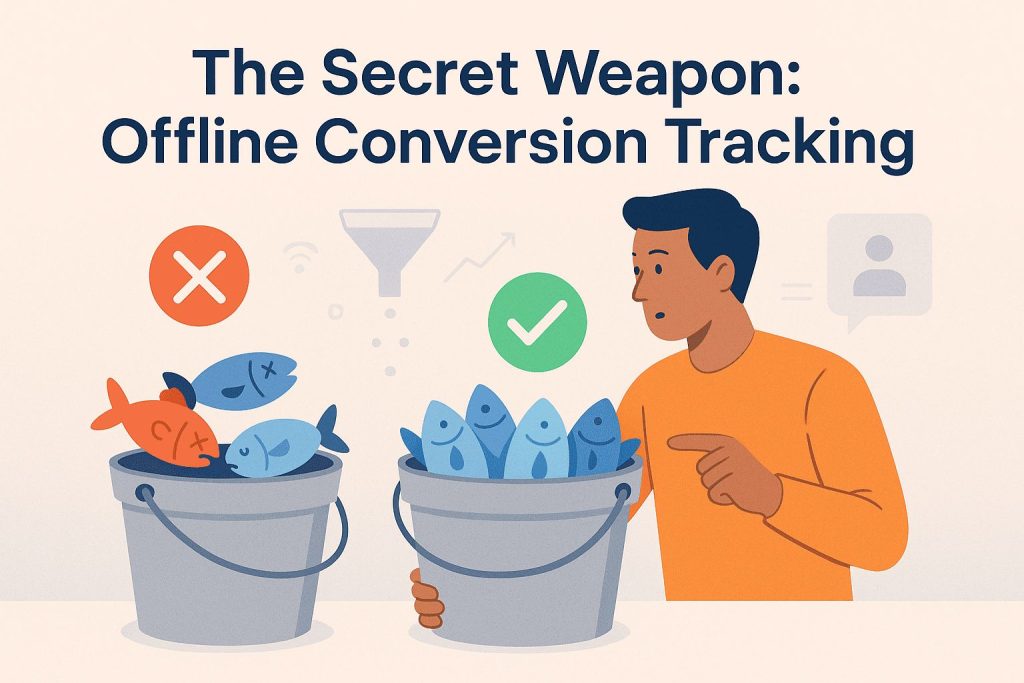
Imagine you’re teaching someone to fish. You say “catch fish,” and they come back with a bucket. You look inside and find plastic toy fish, dead fish, and one actual edible fish.
You say “no, I need edible fish.” They go back and return with a bucket of edible fish. That’s what offline conversion tracking does—it teaches the algorithm what you actually need.
Without offline conversion tracking:
- Google optimizes for form submissions
- You get 100 leads, 5 become customers
- Google thinks all 100 leads were successful
- Algorithm: “Great! Find me 100 more people who submit forms!”
With offline conversion tracking:
- Google optimizes for qualified leads or customers
- You get 40 leads, 15 become customers
- You tell Google which 15 were valuable
- Algorithm: “Got it! Find me more people like these 15!”
The difference in results is staggering. We’ve consistently seen:
- 40-60% improvement in lead quality
- 30-50% reduction in cost per qualified lead
- 2-3x increase in actual customer acquisition
Understanding the Offline Conversion Tracking Flow
Here’s how the entire system works:
Step 1: Someone clicks your Google Ad
- Google automatically appends a GCLID (Google Click ID) to your URL
- Example: yoursite.com/landing-page?gclid=abc123xyz
Step 2: They fill out your form
- Your form captures the GCLID in a hidden field
- The GCLID gets stored along with their contact information
Step 3: Lead goes into your CRM
- You qualify the lead (is this someone we want as a customer?)
- You mark them as: Junk / Qualified / Demo Booked / Customer
Step 4: You import conversion data back to Google Ads
- Format: GCLID + Conversion Action + Conversion Time + Value
- Google matches the GCLID to the original click
- Algorithm learns: “This click led to a qualified lead/customer”
Step 5: Performance Max optimizes
- Google finds more people similar to those who became qualified leads/customers
- Stops wasting money on characteristics that produce junk leads
Setting Up GCLID Capture (Technical Setup)
The GCLID is automatically added to your URL when someone clicks a Google ad. You need to capture it and store it with each lead.
Method 1: Using Google Tag Manager (Recommended)
- Create a new variable in GTM
- Variable Type: URL
- Component Type: Query
- Query Key: gclid
- Store this in a cookie or dataLayer
- Pass it to your form as a hidden field
Method 2: Using WordPress Forms
Most form plugins support GCLID capture:
For WPForms:
- Add a Hidden field to your form
- Field Name: gclid
- Default Value: Use the “Dynamic Population” feature
- Parameter Name: gclid
For Gravity Forms:
- Add a Hidden field
- Enable “Allow field to be populated dynamically”
- Parameter Name: gclid
For Contact Form 7: Add this to your form code:
[hidden gclid default:get]Method 3: Using JavaScript (Universal Method)
Add this code to your form page:
// Get GCLID from URL
function getGclid() {
    const urlParams = new URLSearchParams(window.location.search);
    const gclid = urlParams.get('gclid');

    if (gclid) {
        // Store in cookie for 90 days
        document.cookie = `gclid=${gclid}; max-age=7776000; path=/`;
        return gclid;
    }

    // Check if already in cookie
    const cookies = document.cookie.split(';');
    for (let cookie of cookies) {
        if (cookie.trim().startsWith('gclid=')) {
            return cookie.split('=')[1];
        }
    }
    return '';
}

// Add to hidden field when form loads
document.addEventListener('DOMContentLoaded', function() {
    const gclidField = document.getElementById('gclid-field');
    if (gclidField) {
        gclidField.value = getGclid();
    }
});
Testing your GCLID capture:
- Click on one of your Google Ads (use preview mode to avoid spending money)
- Check your URL—you should see
?gclid=at the end - Fill out your form
- Check your form submission data—the GCLID should be captured
- Verify it’s being stored in your CRM
Defining Your Conversion Stages
Now decide what conversions you want to track. I recommend a multi-stage approach:
Stage 1: Form Submission (Track but don’t optimize for this)
- Conversion name: “Lead Form Submit”
- Count: One per person
- Value: ₹0 or ₹500 (estimated value)
Stage 2: Qualified Lead (Primary optimization goal)
- Conversion name: “Qualified Lead”
- Count: One per person
- Value: Your average lead value or customer lifetime value × conversion rate
- Example: If 20% of qualified leads become customers, and average customer value is ₹50,000, then qualified lead value = ₹10,000
Stage 3: Demo/Consultation Booked (Optional secondary goal)
- Conversion name: “Demo Booked”
- Count: One per person
- Value: Higher than qualified lead
Stage 4: Customer/Sale (Ultimate goal)
- Conversion name: “Customer Acquired”
- Count: One per person
- Value: Actual sale amount or average customer value
Important: Only optimize your campaign for ONE of these stages at a time. Most businesses should optimize for “Qualified Lead” because it balances quality and volume.
Creating Offline Conversion Actions
- Go to: Tools & Settings → Measurement → Conversions → New Conversion Action
- Select: Import → Other data sources or CRMs → Track conversions from clicks
Settings:
- Conversion name: Qualified Lead
- Category: Lead
- Value: Use different values for each conversion (if you track actual deal size) OR Use the same value for each conversion (if you use average)
- Count: One
- Click-through conversion window: 90 days
- View-through conversion window: 1 day
Click Create and Continue.
You’ll get a Conversion ID and Conversion Label. Save these—you’ll need them for importing data.
Importing Conversion Data to Google Ads
Now we need to tell Google which leads were qualified. You’ll do this regularly (daily, weekly, or monthly depending on your volume).
Method 1: Manual CSV Upload (Good for low volume)
Step 1: Prepare your CSV file with these columns:
- GCLID (the captured ID from the form)
- Conversion Name (exactly as named in Google Ads: “Qualified Lead”)
- Conversion Time (YYYY-MM-DD HH:MM:SS in your account timezone)
- Conversion Value (optional, in your account currency)
- Conversion Currency (INR)
Example CSV:
GCLID,Conversion Name,Conversion Time,Conversion Value,Conversion Currency
abc123xyz,Qualified Lead,2025-12-10 14:30:00,10000,INR
def456uvw,Qualified Lead,2025-12-11 09:15:00,10000,INR
ghi789rst,Qualified Lead,2025-12-11 16:45:00,15000,INR
Step 2: Upload to Google Ads
- Go to Tools & Settings → Measurement → Conversions
- Click “Uploads” in the left menu
- Click the blue “+” button
- Select your conversion action
- Upload your CSV file
- Review and import
Processing time: 3-24 hours. Check back to confirm the conversions were imported successfully.
Method 2: Automated Import Using Zapier (Better for regular volume)
If you’re getting 10+ qualified leads per week, automate this process.
Setup:
- Create a Zapier account (free plan works for up to 100 tasks/month)
- Set up trigger: When a lead is marked as “Qualified” in your CRM
- Trigger app: Your CRM (Zoho, HubSpot, Google Sheets, etc.)
- Trigger event: Updated record or New tag added
- Add filter: Only continue if status = “Qualified”
- Set up action: Upload conversion to Google Ads
- Action app: Google Ads (requires Business plan or higher)
- Action: Upload Offline Conversion
- Map fields: GCLID → GCLID field from CRM, Conversion Name → “Qualified Lead”, Conversion Time → Date qualified
- Test and activate
Method 3: Direct CRM Integration (Best for high volume)
Most major CRMs offer direct integration with Google Ads:
HubSpot:
- Go to Settings → Integrations → Google Ads
- Connect your Google Ads account
- Select which deal stages count as conversions
- HubSpot automatically sends conversion data
Salesforce:
- Install Google Ads connector from AppExchange
- Map Salesforce stages to Google Ads conversions
- Configure sync frequency
Zoho CRM:
- Go to Setup → Marketplace → Google Ads
- Authenticate and connect
- Map Zoho stages to conversion actions
How Often to Import Conversion Data
- Daily: If you have high lead volume (50+ leads/day) and quick sales cycles
- Weekly: If you have moderate volume (10-50 leads/week)
- Bi-weekly or Monthly: If you have low volume (less than 10 qualified leads/week)
Key point: The faster you import conversion data, the faster Performance Max learns and optimizes. Don’t wait months to import—your campaign is learning from incomplete data during that time.
Assigning Values to Different Lead Quality Levels
Not all leads are equal. You can assign different conversion values based on lead quality or deal size.
Example for a B2B SaaS company:
- Small business lead (1-10 employees): ₹5,000 value
- Mid-market lead (11-50 employees): ₹15,000 value
- Enterprise lead (51+ employees): ₹40,000 value
When you import conversions, include the appropriate value for each lead. Google’s algorithm will learn to prioritize finding enterprise leads because they’re worth more.
Example for a coaching institute:
- Inquired about ₹20,000 course: ₹4,000 value (assuming 20% conversion rate)
- Inquired about ₹50,000 course: ₹10,000 value
- Corporate training inquiry: ₹100,000 value
Performance Max will naturally shift toward finding leads for higher-value offerings.
India-Specific Tracking Consideration: WhatsApp Follow-ups
Many Indian businesses do most of their lead qualification and follow-up on WhatsApp, not email or phone. How do you track conversions that happen through WhatsApp?
Solution: Add a custom field in your CRM to track WhatsApp conversion status.
When someone becomes a qualified lead or customer through WhatsApp:
- Update their status in your CRM
- Export the GCLID associated with that contact
- Import it to Google Ads as a conversion
Tools like Interakt, Wati, and AiSensy integrate with CRMs and can help automate this process.
Optimization Strategies That Actually Work
Your campaign is live. You’ve set up offline conversion tracking. Now let’s talk about how to improve performance over time.
1. Negative Keywords (Yes, They Still Matter in Performance Max)
Google added the ability to add negative keywords to Performance Max campaigns in 2023. You can now add up to 1,000 negative keywords at the campaign level.
Why this matters: Performance Max shows your ads on Search, and without negative keywords, you might appear for completely irrelevant searches that waste your budget.
How to add negative keywords:
- Go to your Performance Max campaign
- Click “Settings” in the left menu
- Scroll to “Negative keywords”
- Click “Add negative keywords”
Essential negative keywords for lead generation:
Brand protection:
- Your brand name (if you have separate branded campaigns)
- Competitor brand names
- Generic terms with your brand (Example: “free [your company name]”)
Job seekers (unless you’re hiring):
- job
- jobs
- career
- careers
- hiring
- vacancy
- recruitment
- apply
- resume
- cv
Students/Academic (unless you’re an education business):
- project
- assignment
- notes
- ppt
- pdf download
- free download
- research paper
- thesis
Low-intent searchers:
- free
- cheap
- cheapest
- lowest price
- discount (if you never offer discounts)
- how to do it myself
- diy
- tutorial
Wrong service/product: If you offer digital marketing courses, exclude:
- traditional marketing
- offline marketing
- newspaper advertising
Add negative keywords in the first week itself. Don’t wait for bad traffic to accumulate.
How to find what to exclude:
- Week 1: Add obvious negative keywords based on what you know won’t convert
- Week 2-3: Check Insights and Reports → Search Terms (limited data in PMax, but some appears)
- Week 4+: Look at your form submissions. Are people asking about things you don’t offer? Add those as negatives.
2. Making Your Forms More Qualifying
Your form is your first line of defense against junk leads. A better form reduces wasted ad spend and improves the quality of data Google’s algorithm learns from.
Add qualifying questions:
For B2B services:
- Company name (makes it real, not just a name)
- Company size (dropdown)
- Your role/designation
- What’s your budget range?
- What’s your timeline?
For coaching/education:
- Highest qualification
- Current profession
- Preferred batch timing
- Can you commit to [X hours/week]?
Use multi-step forms for higher ticket offerings:
Instead of showing 10 fields at once (which scares people away), break it into steps:
Step 1:
- Name
- Phone
Step 2:
- Company details
- Your requirement
- Budget
Step 3:
- Preferred contact method
- Best time to call
This improves completion rates while still collecting qualification data.
Set up separate thank-you pages:
Create different thank-you pages for qualified vs. unqualified leads:
- Qualified: Fire your “Qualified Lead” conversion pixel → Route to sales team immediately
- Unqualified: Fire “Form Submit” conversion only → Route to nurture sequence
Example: If someone selects “Just researching” and “6+ months timeline,” send them to a different thank-you page that doesn’t count as a qualified conversion.
Use conditional logic in forms:
Tools like WPForms, Gravity Forms, and Typeform let you show/hide fields based on previous answers.
Example:
“What’s your budget?” → If they select “Less than ₹10,000” and your minimum is ₹50,000 → Show message: “Our services start at ₹50,000. Would you like to explore our payment plans?” → If No → Don’t fire conversion pixel
This immediately filters out people who can’t afford your service without making them feel rejected.
3. Search Themes (When to Use Them)
Search Themes are keywords you add to guide Performance Max on what searches to target. They’re optional but can be helpful in specific situations.
When to use Search Themes:
✅ You’re in a very specific niche (Example: “industrial automation software for textile manufacturers”)
✅ Your service has multiple names or terms people search for (Example: “CRM”, “customer management software”, “sales automation tool”)
✅ You want to expand into new service areas (Example: You do SEO, now adding PPC services—add PPC-related search themes)
When NOT to use Search Themes:
❌ You’re in a common industry (digital marketing, real estate, coaching) and Performance Max is already finding relevant traffic
❌ You’re being too restrictive and limiting the algorithm’s ability to find new audiences
❌ You’re basically trying to recreate a Search campaign inside Performance Max
How to add Search Themes:
- Go to your Performance Max campaign
- Click on your asset group
- Scroll to “Final URL expansion”
- Click “Use content from specific webpages and Search Themes”
- Add your Search Themes (2-5 themes, not 50)
Examples of good Search Themes for Indian businesses:
B2B SaaS (CRM product):
- crm software india
- customer management system
- sales automation software
- crm for small business
Digital Marketing Course:
- digital marketing certification
- online marketing training
- seo course
- social media marketing course
Real Estate Developer:
- 2bhk flats in [city]
- ready to move apartments
- residential projects [locality]
- under construction properties
Consulting Business:
- business consultant india
- startup consulting
- growth strategy consultant
- business advisor for small business
Keep them focused but not too narrow. Let the algorithm explore beyond these themes.
4. Asset Performance Monitoring and Refresh
Google mixes your assets (headlines, descriptions, images) in different combinations to see what performs best. You need to monitor this and refresh underperforming assets.
How to check asset performance:
- Go to your Performance Max campaign
- Click on the asset group
- Click “Assets” in the left menu
- View performance of each headline, description, and image
Performance ratings:
- Low: Remove and replace
- Good: Keep
- Best: Create more like this
When to refresh assets:
- Week 1-2: Don’t touch anything. Let the campaign learn.
- Week 3-4: Check performance. Replace “Low” performing assets.
- Month 2+: Every 2-3 weeks, replace your lowest performer with new creative
- Every 60-90 days: Refresh all creative to prevent ad fatigue
What to test:
Headlines:
- Benefit-focused vs. feature-focused
- With pricing vs. without pricing
- With social proof vs. without
- Question format vs. statement format
Images:
- Real people vs. graphics
- Product screenshots vs. lifestyle images
- With text overlay vs. without
- Different color schemes
Important: Don’t change everything at once. Test one variable at a time so you know what actually made a difference.
5. Budget and Bid Strategy Optimization
Getting your budget and bidding right is crucial for Performance Max success.
Starting Budget Guidelines:
Set your daily budget at 2-3x your target cost per qualified lead.
Example:
- Target cost per qualified lead: ₹2,000
- Daily budget: ₹4,000-₹6,000
- Monthly budget: ₹1,20,000-₹1,80,000
Why 2-3x? Performance Max needs room to test different audiences and placements. If you set the budget too tight, it can’t explore effectively.
Signs your budget is too low:
- Campaign status shows “Limited by budget”
- You’re stuck in learning phase for weeks
- Conversion delays (Google needs more data points)
- Not spending the full budget but delivery is “Limited by budget”
When to increase budget:
✅ Your cost per qualified lead is below target consistently for 7+ days
✅ Campaign is limited by budget
✅ You’re getting good quality leads and want more volume
✅ After the learning phase, performance is strong
Increase gradually: Add 20-30% at a time, not doubling overnight. Large budget changes reset the learning phase.
When to decrease budget:
❌ Cost per qualified lead is 30%+ above target for 14+ days
❌ Lead quality has dropped significantly
❌ Business can’t handle more leads right now
Decrease gradually: Reduce by 20-30% at a time.
Bid Strategy Evolution:
Weeks 1-3: Maximize Conversions (No Target)
- Let Google find conversions at any cost
- Gather data to understand your actual cost per conversion
- Don’t panic if early costs are high
Week 3-4: Set Target CPA
- Calculate your average cost per qualified lead from weeks 1-3
- Set Target CPA at 10-20% above this average
- Example: Average was ₹1,800, set target at ₹2,000-₹2,160
Month 2+: Optimize Target CPA
- If hitting target consistently, lower it by 10-15%
- If not spending or getting conversions, raise it by 10-15%
- Make changes every 7-14 days maximum, not daily
Advanced: Target ROAS (If you’re tracking revenue)
Once you’re importing actual deal values with your offline conversions, you can switch to Target ROAS (Return on Ad Spend).
Example:
- Average deal value: ₹50,000
- Target ROAS: 300% (you want ₹3 in revenue for every ₹1 spent)
- This means you’re willing to spend up to ₹16,667 per customer (₹50,000 ÷ 3)
Target ROAS is powerful but requires accurate revenue data. Only use this if you’re diligently tracking actual deal values.
Advanced Strategy: The Fire & Ice Campaign Structure
Once you’re comfortable with Performance Max basics and have some budget to work with, consider this advanced structure used by sophisticated advertisers.
The concept:
Run two Performance Max campaigns with different objectives and bidding strategies:
🔥 Fire Campaign (Warm Traffic)
- Target: People likely to convert soon
- Audience signals: Customer lists, website visitors, engaged users
- Bidding: Target CPA for qualified leads or sales
- Budget: 60-70% of total budget
- Goal: Get high-quality conversions
❄️ Ice Campaign (Cold Prospecting)
- Target: New audiences, broader discovery
- Audience signals: Broad demographics, interests, lookalike audiences
- Bidding: Target CPA for form fills or micro-conversions
- Budget: 30-40% of total budget
- Goal: Find new potential customers, feed them into Fire campaign
How they work together:
Ice campaign finds new people and gets them to take small actions (visit website, watch video, submit form). These people then become part of your audience signals for the Fire campaign.
Fire campaign targets these warmer prospects with higher-value conversion goals and gets them to become qualified leads or customers.
Setup example for a coaching business:
Fire Campaign:
- Name: PMAX | Fire | Qualified Leads
- Audience signals: Customer list, qualified leads list, website visitors (3+ pages)
- Conversion goal: Qualified Lead (Target CPA: ₹2,500)
- Budget: ₹3,500/day
Ice Campaign:
- Name: PMAX | Ice | Prospecting
- Audience signals: Demographics (Age 22-35, college graduates), Interests (Career development, Skill learning)
- Conversion goal: Form submission or Video view (Target CPA: ₹800)
- Budget: ₹1,500/day
Key difference: Fire campaign only targets people who’ve shown interest. Ice campaign finds new people who’ve never heard of you.
When to use this structure:
✅ You have monthly budget of ₹1,50,000+
✅ You’ve already tested single Performance Max campaign successfully
✅ You want to scale lead generation without sacrificing quality
✅ You have conversion data for multiple stages of the funnel
When NOT to use this:
❌ You’re just starting with Performance Max
❌ Monthly budget is less than ₹75,000
❌ You don’t have clear audience segmentation data yet
Common Mistakes Indian Businesses Make (And How to Fix Them)
After auditing hundreds of Performance Max accounts, here are the mistakes I see repeatedly:
Mistake 1: Testing with Tiny Budgets
The problem: Running Performance Max with ₹300-500 per day in competitive markets like Bangalore or Mumbai.
Why it fails: The algorithm needs volume to learn. With such small budgets, you might get 2-3 conversions per week. That’s not enough data for optimization. You stay stuck in learning phase forever.
The fix:
If you can’t afford ₹1,000+ per day, don’t run Performance Max yet. Run Search campaigns targeting high-intent keywords instead. Build up some conversion volume, then migrate to Performance Max when you have budget.
Minimum viable budgets:
- Tier-1 cities, competitive industries: ₹1,500-2,000/day
- Tier-2 cities, moderate competition: ₹800-1,200/day
- Tier-3 cities, low competition: ₹500-800/day
Mistake 2: Not Tracking Lead Quality
The problem: Only tracking form submissions, not what happens after.
Why it fails: You’re teaching Google to find people who fill forms, not people who become customers. The algorithm optimizes for the wrong thing.
The fix:
Implement offline conversion tracking immediately. Even if you start manual (uploading CSV files weekly), it’s infinitely better than not tracking at all.
Track at least two stages:
- Form submission (secondary)
- Qualified lead or customer (primary)
Within 30 days of implementing offline tracking, you’ll see lead quality improve dramatically.
Mistake 3: Using the Same Assets as Display Ads
The problem: Taking your brand awareness creative and using it for Performance Max lead generation.
Why it fails: Brand awareness ads are about visibility and recall. Lead generation ads need to drive action. Different objectives require different creative.
The fix:
Create lead-generation-specific assets that:
- State the benefit clearly in the headline
- Include a specific call-to-action
- Address objections (free trial, no credit card, cancel anytime)
- Show social proof (trusted by X customers)
- Focus on the problem you solve, not just who you are
Example:
❌ Brand awareness: “India’s Leading Digital Marketing Agency”
✅ Lead generation: “Get 2X More Leads in 90 Days – Free Strategy Call”
Mistake 4: One Campaign for Everything
The problem: Lumping all services, locations, and audiences into a single Performance Max campaign.
Why it fails: If you offer both B2B services and B2C products, the algorithm gets confused about who to target and what success looks like. Different services need different messaging and audiences.
The fix:
Segment campaigns by:
- Service/Product line: One campaign per major offering
- Customer type: B2B vs B2C campaigns
- Geography: If you operate in multiple states with very different markets
Example structure for a digital marketing agency:
- PMAX | SEO Services | B2B
- PMAX | Social Media Management | B2B
- PMAX | Digital Marketing Course | B2C
Each campaign has its own assets, audiences, and optimization goals.
Mistake 5: Panicking During Learning Phase
The problem: Making changes every 2-3 days because results aren’t perfect immediately.
Why it fails: Every time you make significant changes (budget, bidding, assets), you reset the learning phase. The algorithm needs time to gather data and optimize.
The fix:
Set up your campaign properly, then leave it alone for at least 14 days. Check performance, but don’t make changes unless something is fundamentally broken (not spending at all, all assets disapproved, etc.).
Learning phase duration:
- Typically 7-14 days
- Requires 50+ conversions to exit learning phase
- Shows “Learning” status in campaign overview
During learning phase, expect:
- Fluctuating costs per conversion
- Uneven daily performance
- Higher initial CPAs
This is normal. Let the algorithm work.
Mistake 6: Not Excluding Existing Customers
The problem: Wasting budget showing ads to people who already bought from you.
Why it fails: Why pay to acquire someone who’s already a customer? Pure waste of money.
The fix:
Upload your customer list as an exclusion audience:
- Go to Tools & Settings → Shared Library → Audience Manager
- Upload your customer list (emails, phones)
- In your Performance Max campaign → Settings → Audience exclusions
- Add your customer list as excluded
Update this list monthly as you acquire new customers.
Exception: If you have multiple products/services and want to cross-sell, you might keep customers in the audience but with specific messaging for existing customers.
Measuring Success: KPIs That Matter
Don’t just look at “conversions” in your Google Ads dashboard. Track metrics that actually matter to your business.
Primary KPIs (Check Weekly)
1. Cost Per Qualified Lead
Not cost per form submission—cost per QUALIFIED lead.
Formula: Total ad spend ÷ Number of qualified leads
Track this over time. It should decrease as the campaign optimizes.
Benchmarks by industry (India):
- B2B SaaS: ₹1,500-₹4,000
- Coaching/Education: ₹800-₹2,500
- Real Estate: ₹500-₹2,000
- Professional Services: ₹1,000-₹3,500
These vary wildly based on ticket size and market.
2. Lead-to-Opportunity Conversion Rate
What percentage of leads become actual sales opportunities?
Formula: (Number of opportunities ÷ Total qualified leads) × 100
Good rates:
- 30-50%: Excellent lead quality
- 15-30%: Good quality
- 5-15%: Average, room for improvement
- Under 5%: Poor quality, fix your targeting or qualification
3. Cost Per Acquisition (Actual Customer)
Your real cost per customer, not just per lead.
Formula: Total ad spend ÷ Number of customers acquired
This is your north star metric. If this is profitable, everything else is just optimization.
4. Campaign ROI
Are you making money or losing money?
Formula: [(Revenue from customers – Ad spend) ÷ Ad spend] × 100
Example:
- Ad spend: ₹1,00,000
- Revenue from customers acquired: ₹5,00,000
- ROI: [(₹5,00,000 – ₹1,00,000) ÷ ₹1,00,000] × 100 = 400%
For every ₹1 spent, you’re making ₹5. That’s strong ROI.
Minimum viable ROI: At least 200-300% for most service businesses.
Secondary KPIs (Check Monthly)
5. Time to Conversion (Offline Events)
How long does it take from click to qualified lead to customer?
This helps you set appropriate conversion windows and expectations.
Track:
- Click to form submission: Usually 0-1 days
- Form submission to qualified lead: 1-7 days (depends on your follow-up speed)
- Qualified lead to customer: 7-90 days (varies by industry)
6. Average Deal Size
Are you attracting high-value or low-value customers?
If your Performance Max campaigns consistently bring lower-value deals than your Search campaigns, you might need to adjust audience signals or asset messaging to target higher-value prospects.
7. Customer Lifetime Value (CLV)
For subscription or recurring revenue businesses, track the full value of customers acquired through Performance Max vs. other channels.
Sometimes Performance Max customers have higher/lower retention rates than customers from other sources. This impacts long-term profitability.
Dashboard Setup
Don’t rely solely on Google Ads interface. Create a custom dashboard (Google Sheets or Data Studio) that pulls:
From Google Ads:
- Clicks, Impressions, CTR
- Conversions (by type)
- Cost per conversion
- Conversion rate
- Budget pacing
From your CRM:
- Qualified lead count
- Opportunity count
- Closed deals
- Revenue by source
Combined metrics:
- Cost per qualified lead
- Cost per customer
- Campaign ROI
- Lead-to-customer conversion rate
Update this weekly. Review monthly trends, not daily fluctuations.
Performance Max vs. Search Campaigns for Lead Generation
Should you run Performance Max, Search campaigns, or both? Here’s how to decide.
When Performance Max Works Better
✅ You’re in discovery/awareness phase: People don’t know they need your solution yet
✅ Visual content matters: Your service/product benefits from images or video
✅ You want to test multiple channels: Performance Max shows ads across Search, Display, YouTube, Gmail, Discover
✅ You have good creative assets: Quality headlines, images, videos ready to go
✅ You want automation: Less hands-on management required
Best for: Coaching, education, lifestyle services, B2C products, newer brands building awareness
When Search Campaigns Work Better
✅ High-intent keywords: People searching with clear purchase intent
✅ Complex decision-making: B2B sales with long consideration periods
✅ You need control: Specific keyword targeting, ad copy testing, exact placement control
✅ Budget constraints: You can’t afford the learning phase or testing multiple channels
✅ Brand terms: Protecting your brand keywords from competitors
Best for: B2B services, high-ticket offers, established brands with strong search demand
Running Both (Recommended Approach)
Most businesses get best results running both, properly segmented:
Search Campaigns for:
- Branded keywords (your company name, product names)
- High-intent keywords (competitor comparisons, “best [service] in [city]”)
- Very specific service requests
Performance Max for:
- Discovery and prospecting
- Expanding into new audiences
- Testing new messaging and creative
- Cross-channel presence
Critical: Prevent cannibalization
Add your Performance Max campaign name as a negative keyword in Search campaigns:
- Go to your Search campaign
- Settings → Negative keywords
- Add: Your PMax campaign name
This prevents both campaigns from competing for the same searches.
Budget split recommendation:
If total budget is ₹2,00,000/month:
- Search campaigns: ₹1,20,000 (60%)
- Performance Max: ₹80,000 (40%)
Adjust based on what’s performing better. Some businesses eventually shift to 80% Performance Max once it’s optimized.
Real Results: What to Expect Timeline
Let’s set realistic expectations for a properly set-up Performance Max campaign with offline conversion tracking.
Week 1-2: Learning Phase
What’s happening:
- Algorithm testing different audiences
- Ad placements being evaluated
- Creative combinations being tried
What you’ll see:
- Inconsistent daily performance
- Higher than expected cost per conversion
- Campaign status: “Learning”
- Some days no conversions, other days several
What to do:
- Don’t panic
- Don’t make changes (unless something is broken)
- Verify conversion tracking is working
- Monitor for obvious issues (all assets disapproved, not spending, etc.)
Week 3-4: Early Optimization
What’s happening:
- Algorithm starting to identify better-performing audiences
- Asset combinations being refined
- Costs beginning to stabilize
What you’ll see:
- Campaign status changes to “Eligible”
- Cost per conversion becoming more consistent
- Some asset performance ratings showing (Low/Good/Best)
What to do:
- Review asset performance
- Replace “Low” performing assets
- Add negative keywords if seeing irrelevant traffic
- Begin tracking lead quality (qualified vs. junk)
Month 2: Stabilization
What’s happening:
- Algorithm found its groove
- Consistent performance emerging
- Offline conversion data being incorporated (if you set it up)
What you’ll see:
- Predictable daily performance
- Cost per qualified lead within 20% of target
- Lead quality improving (if using offline tracking)
What to do:
- Optimize Target CPA if needed (raise or lower by 10%)
- Test new creative variations
- Consider expanding budget if performance is strong
Month 3+: Scale and Refine
What’s happening:
- Maximum efficiency reached
- Algorithm fully optimized for your business
- Time to scale or refine
What you’ll see:
- Consistent lead quality
- Stable costs
- Clear winners in asset performance
What to do:
- Scale budget if ROI is positive
- Launch additional campaigns for new services
- Implement Fire & Ice structure if ready
- Continue testing new creative to prevent ad fatigue
Real Case Study (Anonymized)
Business: B2B SaaS company selling project management software to Indian businesses
Budget: ₹1,50,000/month
Setup:
- Performance Max campaign with offline conversion tracking
- Target: Qualified leads (companies with 10+ employees, ₹50,000+ annual spend potential)
- Assets: 5 headlines, 5 descriptions, 15 images, 3 videos
Results:
Month 1:
- Leads: 48 (form submissions)
- Qualified leads: 12 (25% qualification rate)
- Cost per qualified lead: ₹12,500
- Customers: 2
- Revenue: ₹1,20,000
- ROI: -20% (still learning)
Month 2:
- Leads: 52
- Qualified leads: 22 (42% qualification rate)
- Cost per qualified lead: ₹6,818
- Customers: 5
- Revenue: ₹3,00,000
- ROI: 100%
Month 3:
- Leads: 45
- Qualified leads: 28 (62% qualification rate)
- Cost per qualified lead: ₹5,357
- Customers: 8
- Revenue: ₹4,80,000
- ROI: 220%
Key takeaway: Fewer total leads but much better quality. The algorithm learned what a qualified lead looks like through offline conversion tracking and found more of them.
Troubleshooting Common Issues
Issue 1: Campaign Not Spending
Symptoms:
- Daily budget set but only spending 30-50%
- Status shows “Eligible” but limited impressions
Possible causes & fixes:
Target CPA too low:
- Check your target CPA vs. actual market costs
- Raise Target CPA by 20-30%
- Or switch to Maximize Conversions temporarily
Too narrow targeting:
- Expand location targeting
- Remove overly restrictive audience signals
- Check if negative keywords are too aggressive
Assets not approved:
- Go to Assets tab
- Check approval status
- Fix any disapproved assets (usually policy violations)
Insufficient conversion data:
- If you have under 10 conversions in 30 days, consider:
- Lowering conversion value temporarily to get more data
- Broadening what counts as a conversion initially
Issue 2: Getting Leads But They’re All Junk
Symptoms:
- High conversion volume
- Low cost per lead
- But nothing closes, all inquiries are irrelevant
Possible causes & fixes:
No offline conversion tracking:
- Priority fix: Implement offline conversion tracking immediately
- Start uploading qualified leads/customers to teach the algorithm
Form doesn’t qualify people:
- Add qualifying questions (budget, timeline, company size)
- Use conditional logic to filter out obvious mismatches
- Create separate thank-you pages for qualified vs. unqualified
Wrong audience signals:
- Review your audience signals
- Are you targeting too broadly?
- Remove audience signals that might attract wrong people
Add negative keywords:
- Exclude job seekers, students, competitors
- Add “free,” “cheap” if you’re premium
- Exclude locations you don’t serve
Issue 3: High Cost Per Lead
Symptoms:
- Cost per lead 50-100% above target
- Consistent across multiple weeks
- Lead quality is decent but too expensive
Possible causes & fixes:
Target CPA set too high:
- Review actual market costs
- Lower Target CPA by 10-15%
- Monitor for 7 days, adjust again if needed
Competing with your own campaigns:
- Are you running Search campaigns targeting the same keywords?
- Add PMax campaign name as negative keyword in Search campaigns
- Consider pausing one campaign type to test
Poor asset performance:
- Review asset performance ratings
- Replace all “Low” performing assets
- Test new headlines focusing on benefits, not features
Wrong bid strategy:
- If using Maximize Conversions with no target, switch to Target CPA
- If using Target CPA that’s not being hit, switch to Maximize Conversions temporarily to gather more data
Issue 4: Not Enough Conversion Data
Symptoms:
- Campaign stuck in “Learning” for weeks
- Getting clicks but very few conversions
- Campaign status may show “Learning (Limited by conversions)”
Possible causes & fixes:
Budget too low:
- Need 2-3x your target CPA as daily budget minimum
- Increase budget by 30-50%
Conversion tracking issue:
- Verify conversion tag is firing
- Check if thank-you page loads properly
- Test a conversion yourself
Qualification criteria too strict:
- Temporarily lower what counts as a conversion
- Example: Count form submissions while you gather data, then switch to qualified leads
- Need 50+ conversions for algorithm to optimize effectively
Landing page not converting:
- Check page load speed (slow pages kill conversions)
- Review form placement and design
- Test simpler form with fewer fields
- Ensure mobile experience is good (60%+ traffic is mobile in India)
Final Checklist: Launch-Ready Performance Max Campaign
Before you launch your Performance Max campaign, verify every item on this checklist:
✅ Conversion Tracking
- Google Ads conversion tag installed on thank-you page
- Enhanced conversions enabled
- Test conversion fired successfully
- Offline conversion action created (for qualified leads)
✅ GCLID Capture
- Hidden field added to form for GCLID capture
- GCLID storing in CRM or database
- Tested that GCLID is being captured correctly
✅ Campaign Setup
- Campaign goal: Leads selected
- Campaign type: Performance Max
- Clear campaign naming convention
- Location targeting correct
- Language targeting set
✅ Bidding & Budget
- Daily budget set at 2-3x target CPA
- Bid strategy: Maximize Conversions (for new) or Target CPA (if you have data)
- If using Target CPA: Set 10-20% above actual average
✅ Asset Groups
- Minimum 5 unique headlines created
- Minimum 5 unique descriptions created
- 15+ images in correct formats (landscape, square, portrait)
- Logos uploaded
- Videos added (optional but recommended)
- All assets approved (no policy violations)
✅ Audience Signals
- Customer list uploaded (if available)
- Website visitors audience added
- Qualified leads list added (if available)
- Relevant demographics selected
- Interest categories added
- Custom intent keywords added
✅ Negative Keywords
- Brand terms added (if needed)
- Job seeker terms added
- Student/academic terms added
- Low-intent terms added (free, cheap, etc.)
- Geographic irrelevant terms added
✅ Lead Qualification
- Qualifying questions added to form
- Clear criteria defined for what counts as “qualified”
- CRM or tracking system ready
- Process in place to mark qualified vs. unqualified leads
✅ Offline Conversion Import Plan
- Process documented for importing conversions
- Frequency decided (daily, weekly, monthly)
- Template created (CSV format or automation tool)
- First import scheduled
✅ Monitoring & Reporting
- Dashboard created to track performance
- KPIs defined (cost per qualified lead, lead-to-customer rate, ROI)
- Weekly review scheduled
- Stakeholders informed of timeline and expectations
If you’ve checked every box, you’re ready to launch. If not, complete the missing items first—they’ll save you money and headaches later.
Conclusion: Getting Performance Max Right for Indian Lead Generation
Performance Max can be a phenomenal lead generation tool for Indian businesses, but only when it’s set up correctly from the start. The difference between a campaign that wastes money and one that profitably scales your business comes down to a few critical elements:
- Offline conversion tracking is non-negotiable. Without it, you’re flying blind, teaching the algorithm to optimize for the wrong thing. Implement it from day one, even if you start with manual CSV uploads. The improvement in lead quality will pay for itself many times over.
- Give the algorithm time and data. Performance Max needs 2-4 weeks and at least 50 conversions to optimize effectively. Don’t panic during the learning phase. Don’t make daily changes. Set it up properly, then let it work.
- Quality over quantity. A campaign that generates 30 qualified leads at ₹2,000 each is infinitely better than one generating 100 junk leads at ₹600 each. Focus on conversion value, not conversion volume.
- Start simple, then scale. One campaign, one or two asset groups, straightforward setup. Get that working profitably before you add complexity like Fire & Ice structures or multiple campaigns.
The Indian digital marketing landscape is competitive, but Performance Max gives smaller businesses access to the same sophisticated machine learning that big companies use. You don’t need a massive budget—you need smart setup, patience during learning, and consistent optimization based on real business outcomes.
If you implement even half the strategies in this guide, you’ll be ahead of 90% of businesses running Performance Max for lead generation. Most people set up a campaign, optimize for form submissions, wonder why their leads are garbage, and give up. Don’t be most people.
Ready to implement these strategies but need help? At Digital Dawn, we’ve set up and optimized Performance Max campaigns for Indian businesses. We specialize in making these campaigns work for businesses with real budget constraints and Indian market realities.
Our performance marketing services focus on delivering measurable ROI through data-driven campaign optimization across Google Ads, Facebook Ads, and other paid channels. We don’t just generate leads—we help you generate qualified leads that turn into customers.
Or if you’re the DIY type (we respect that), bookmark this guide and refer back to it as you build and optimize your campaign. Performance Max is powerful—use it right, and it’ll transform your lead generation and overall performance marketing results.